Getting Started
1
Install GBOX CLI
Install the GBOX CLI tool to manage your GBOX configuration.
2
Login and Configure GBOX
Authenticate with your GBOX account and set up the configuration.This command will prompt you to enter your GBOX API key and configure your account.
3
Configure the GBOX Android MCP Server for Claude Code using the GBOX CLI
Enter the command in the command line
4
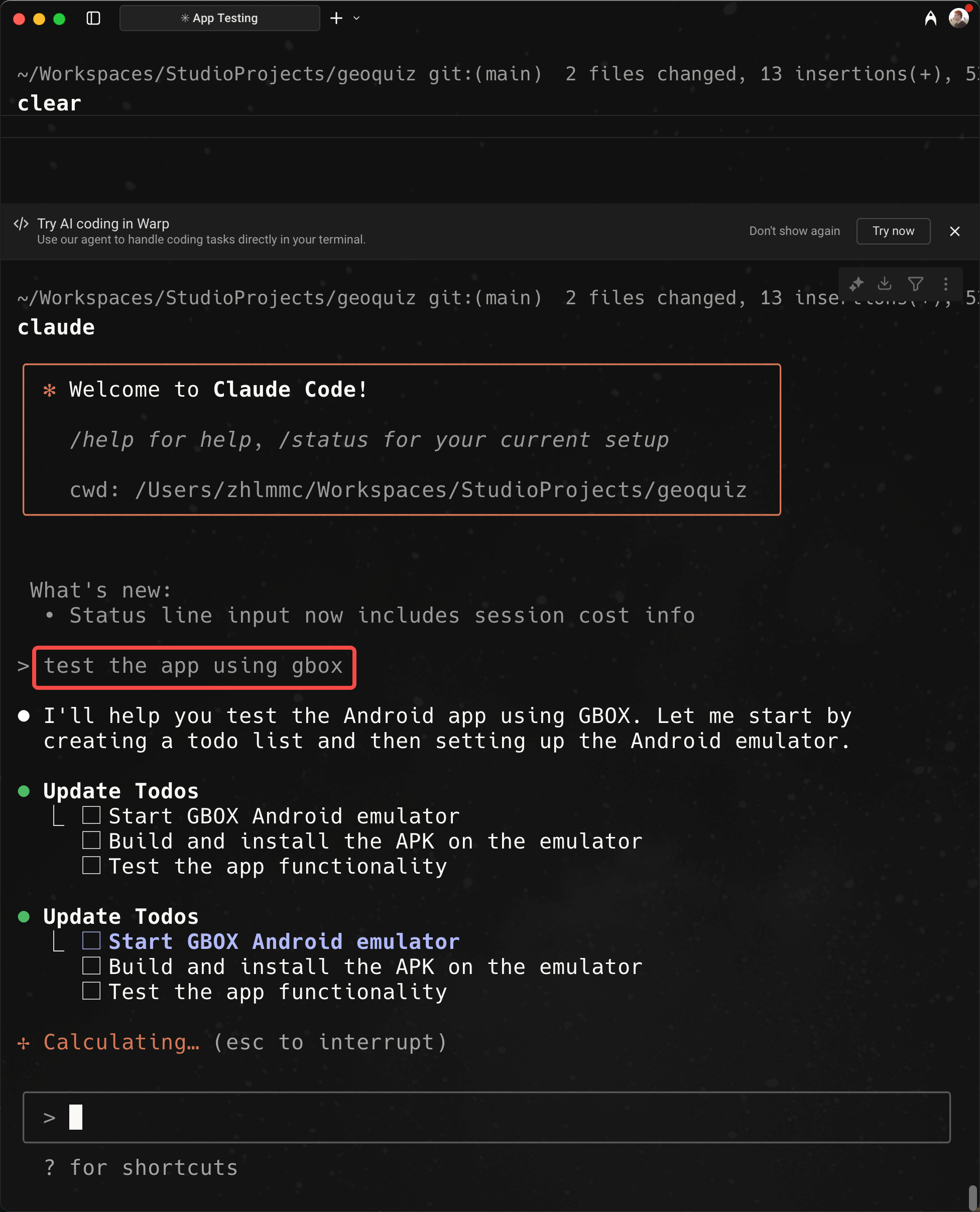
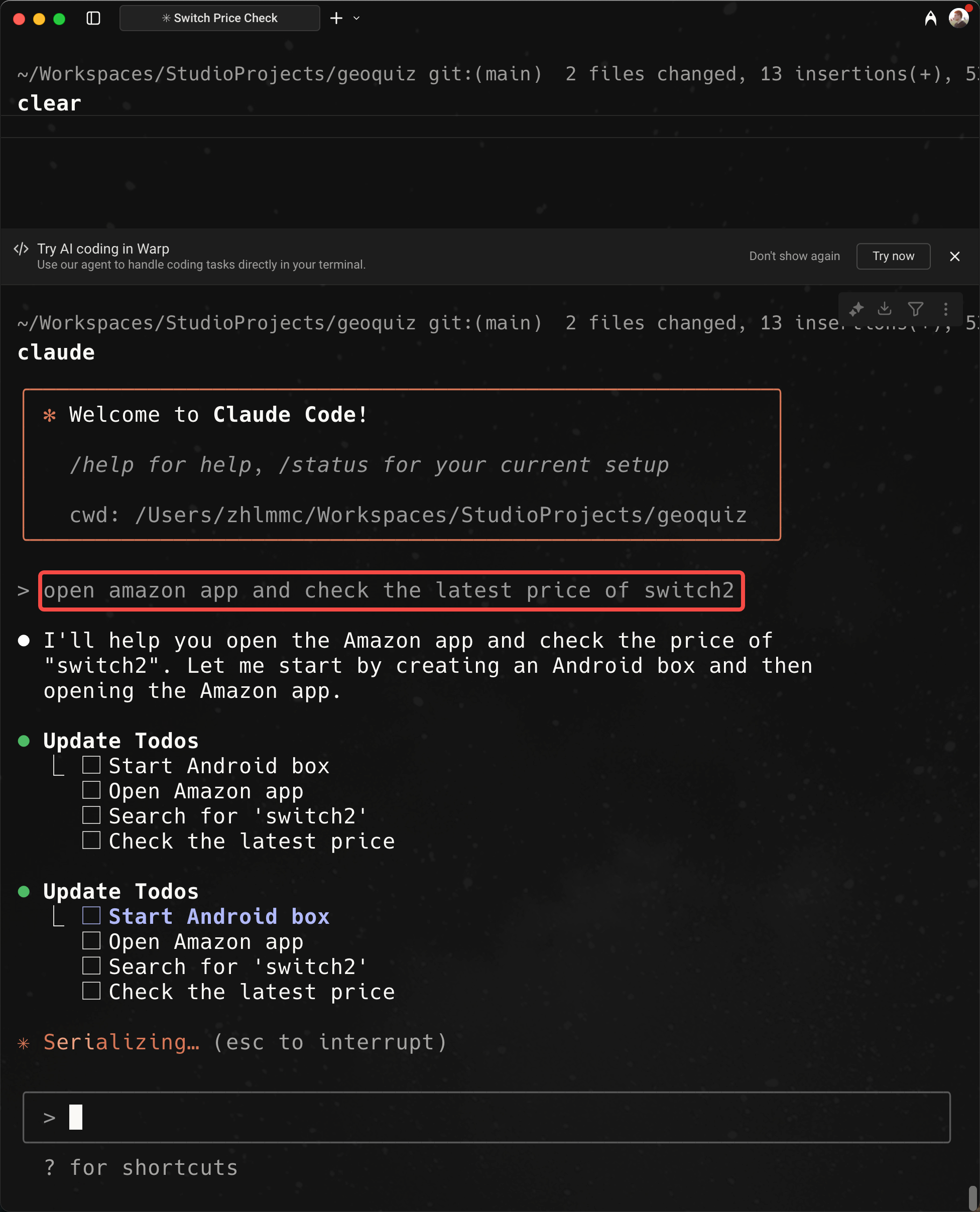
Develop and Test Your Android App
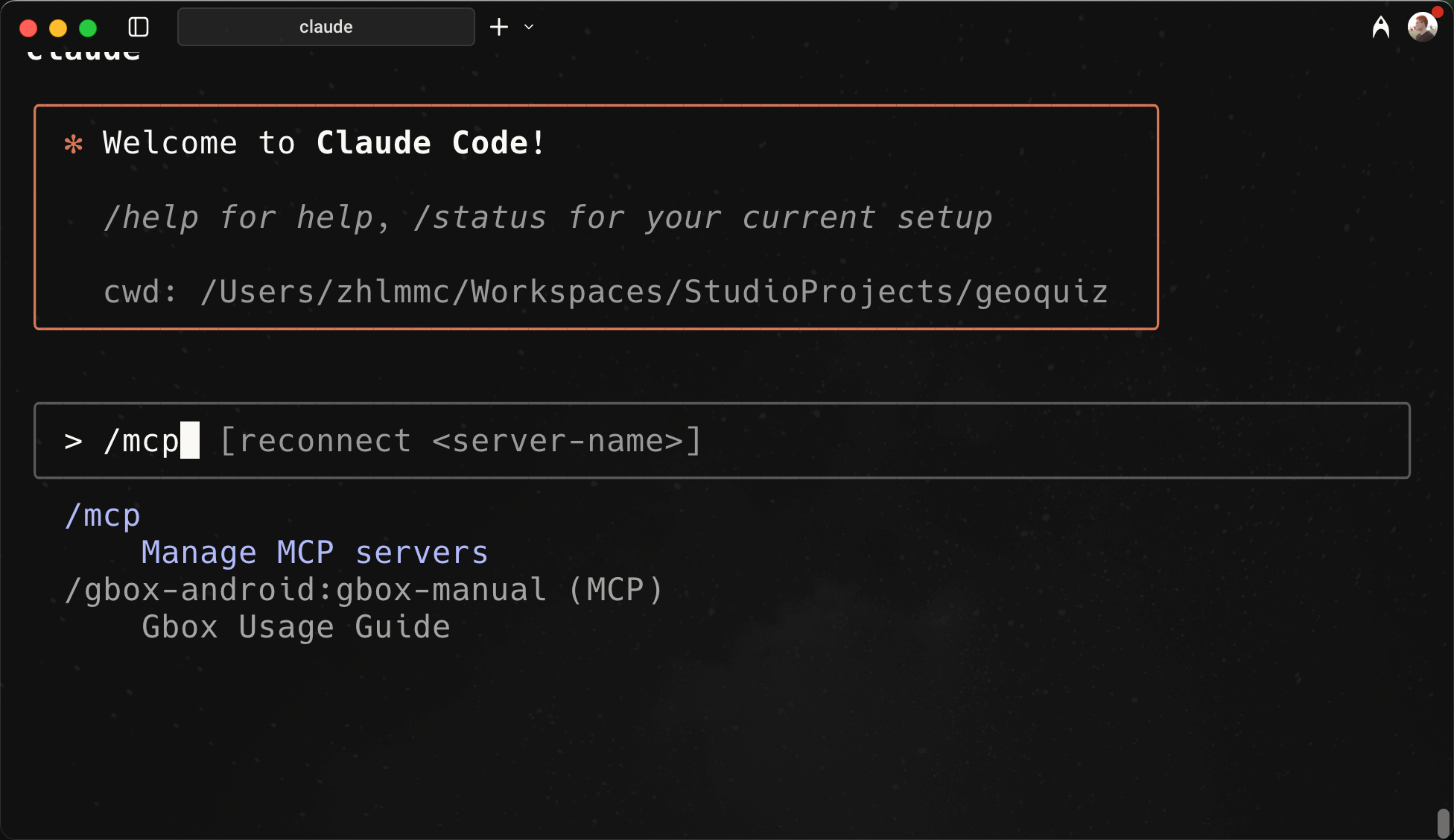
If the installation is correct, you will see the gbox-android mcp server when you type /mcp in Claude.